

AI With Limited Data: 5 Easy Checks Before You Send
Home › Blog › AI With Limited Data: 5 Easy Checks Before You Send
Last checked: 13 November 2026
Using AI with limited data comes down to a few habits: send one complete request instead of many small ones, prefer text over uploads, and know what your phone’s data saver does and does not do. This guide gives five checks, one small test we ran, and the places where the advice stops working.

- 1. Write one complete request
- 2. Choose text before uploads
- 3. Know what the data saver setting does
- 4. Save what works
- 5. Read before you send
Why AI with limited data needs a plan
Most of the useful AI tools for everyday work are used through a phone or a browser, and each message and each file travels over the network. When mobile data is limited or slow, the aim is simple: fewer round trips, smaller things sent, and no repeated asking for something already received. None of this changes what the assistant can do. It only changes how you use it.
1. Write one complete request
A request that says who the message is for, what it must contain, how long it should be and what format to use usually needs no follow-up. A request that says “write a message to a customer” often leads to three or four more messages to fix length, tone and details. Put everything in the first message.
Tested by us with Claude on 13 November 2026. We wrote this made-up request in one message: “Write a short WhatsApp message to a customer named Ada. Her order of 40 meat pies is ready Friday after 2 pm. Pickup is at the shop only. Ask her to confirm by Thursday. Friendly tone, under 60 words, plain text, no emojis.” The reply was a usable 38-word message that included the time, the pickup rule and the Thursday confirmation. The request was 223 characters and the reply 191 characters, so about 0.4 KB of text in total. Other assistants may answer differently, so check the result yourself, and we have not tested this with any other assistant.
2. Choose text before uploads
Text is very small compared with images and files. As a comparison from our own work: the screenshot in this post, after being reduced to 8 colours, is 24 KB, which is roughly 60 times the size of the text in the test above. The original capture was 207 KB. Sizes on your phone will differ, but the pattern holds: a photo or a document costs far more data than a typed question.
So where it makes sense, type the key lines instead of uploading a photo or a whole document. If you must upload, see Files AI can read, and how to get yours ready and remember that anything uploaded may contain private details, as covered in how to summarise a long report with AI safely.
3. Know what the data saver setting does
Both major phone systems have a setting for this, and both describe it in terms of background data, not the data of the app you are using right now.
- Android. Based on Google’s Pixel Phone Help page, checked 13 November 2026: Data Saver lets most apps and services get background data only over Wi-Fi, while currently active apps and services can still use mobile data. The page gives the path as Settings, then Network & internet, then Data Saver. It also says some apps will not work as expected in the background unless you allow them under “Unrestricted data”. It adds that you are told to check with your device maker if the steps differ on a custom Android version.
- iPhone and iPad. Based on Apple’s support page, checked 13 November 2026: Low Data Mode (iOS 13 and later) restricts background network use, turns off automatic downloads and backups, and reduces the quality of streaming content. Apple says different apps reduce data in different ways, and that you may want it if your plan limits data or you are in an area with slow data speeds.
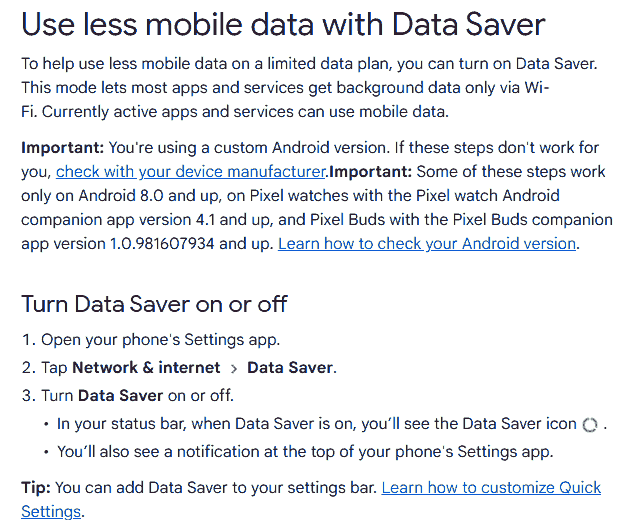
Menus and names change, so look for the nearest matching option on your phone. We have not tested these settings with any AI app, so we cannot say how a particular assistant app behaves with them on. The pages describe an active app as still able to use mobile data, which suggests a chat you are typing into will still work, but check this on your own phone with one short message first.
4. Save what works
When an assistant gives a good answer, a request that worked, or a template you like, copy it into a notes app or a saved message. Asking again for something you already received wastes data and gives a slightly different result each time. A small notes file of working requests also helps if you later turn a repeated task into a reusable template.
5. Read before you send
Being short on data creates pressure to accept the first answer. Do not. A wrong price, date or name sent to a customer costs more than the data you saved. Run the quick routine in how to check an AI answer before you use it, and keep private details out of the request when you can. The ChatGPT privacy settings checks are a useful next read if you use that app.
What to do this week
- Pick one task you already do, such as a customer message, and write the whole request in one message, including length and format.
- Find the data saver setting on your phone using the steps above, turn it on for a day, and note whether your assistant app still works. If it does not, check the “Unrestricted data” option for that app on Android, or the app’s own settings.
- Save the request and the reply that worked in a notes app.
- Read the answer once, line by line, before you send it to anyone.
What can go wrong
- Packing too much into one message can produce a long, muddled answer. Keep one task per message.
- Data saver may stop an app from refreshing in the background, so a message or file may arrive late until you open the app.
- Short answers can leave out detail. Ask for the length you need, not the shortest one.
- Typed shortcuts such as dropping names or dates to save effort can make the answer vague. Include the facts the reply needs.
- Pasting private details just to save a step can expose them. See the glossary for unfamiliar terms and the Start Here page for a calm first path.
Sources: Google, “Use less mobile data with Data Saver”, Pixel Phone Help, support.google.com/pixelphone/answer/7055392, read 13 November 2026 (supports the Data Saver description and steps). Apple, “Use Low Data Mode on your iPhone and iPad”, support.apple.com/en-gb/102433, published date 15 October 2025 on the page, read 13 November 2026 (supports the Low Data Mode description). The text-size and file-size figures and the worked example are our own measurements from 13 November 2026, run with Claude on made-up data. Last checked 13 November 2026.