
ChatGPT Images: Make a Simple Poster in 5 Steps
Home › Blog › ChatGPT Images: Make a Simple Poster in 5 Steps
Last checked: 8 November 2026
ChatGPT Images lets you create new images and edit existing ones in ChatGPT, including simple posters. OpenAI says it is available on all plans, on web, iOS and Android.
Based on OpenAI’s Images in ChatGPT help page, checked 8 November 2026. Menus and names change, so look for the nearest matching option. We have not tested these steps ourselves.
Make a poster with ChatGPT Images in 5 steps
- Describe it. OpenAI says to describe the image you want, or to select Images and enter a prompt. For a poster, say what it is for and any exact words it should include.
- Or start from a template. OpenAI lists templates such as posters and logos. Open the sidebar, select Images, then Templates, choose a category and customise the details.
- Pick the shape. You can use the aspect ratio picker, or include the ratio in your prompt.
- Edit. Ask for changes in the chat, or use the selection tool to highlight an area. OpenAI warns that highlights are not always precise and edits may extend beyond the selected area.
- Save it. Use Save to download the image, Copy to copy it, or Share to send it to another app. OpenAI says images you create are saved under Images.
What to do this week
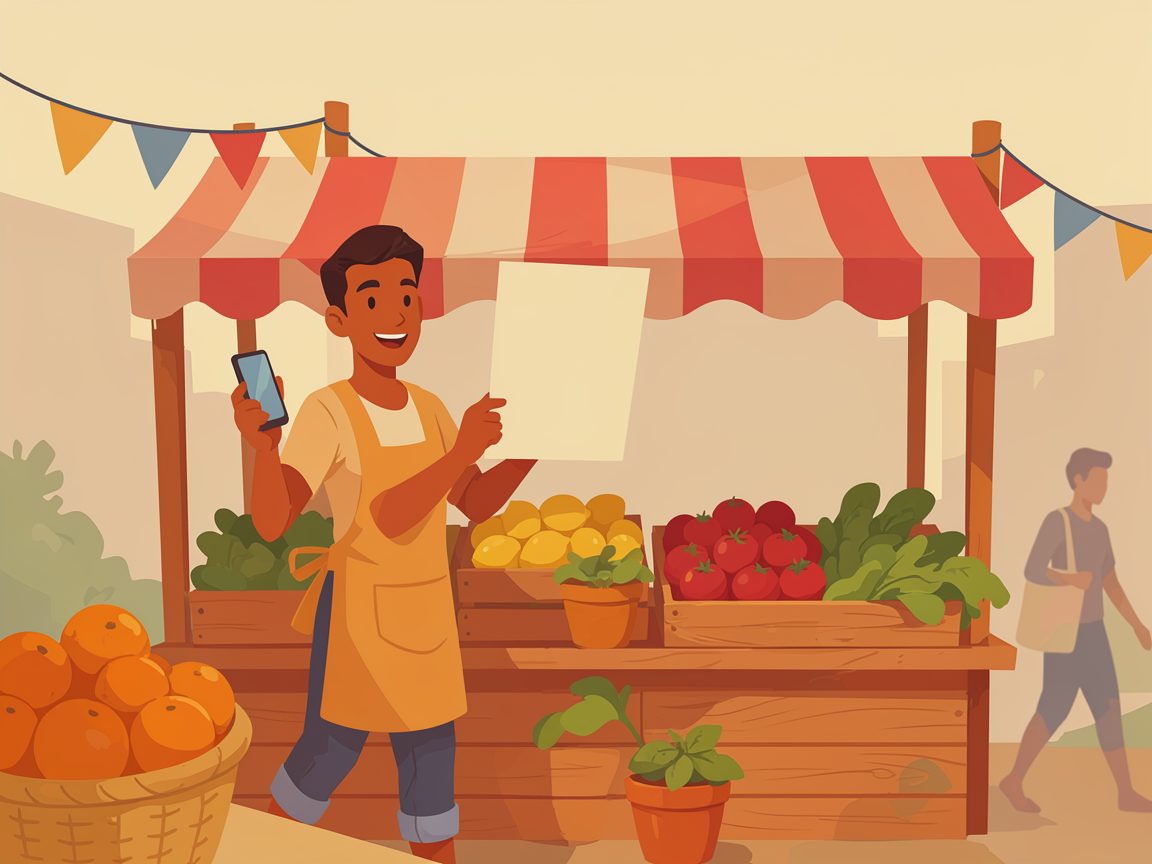
- Make one simple poster, such as a notice for a market stall.
- Read every word on the image and look at every detail.
- Regenerate or edit anything wrong.
- Use only photos you own or have clear permission to use.
What can go wrong with ChatGPT Images
- Spelling and details. Text and small details in AI images can be wrong. Check them yourself.
- Slow results. OpenAI says generation may take a few minutes for complex requests.
- Other people’s photos. Do not upload photos of customers, staff or children without clear permission.
- Overediting. Many rounds of edits can drift from the original idea, so keep a copy you like.
Related: the newest features are in ChatGPT Images 2.6. See also how to check an AI answer and the glossary and the Start Here page.
Questions about ChatGPT Images
Can I use my own photo?
OpenAI says you can upload an existing image and describe the changes you want. Use only photos you own or have clear permission to use.
Can I make the background transparent?
OpenAI says ChatGPT Images can follow instructions to add text, add details, or make the background transparent.
Can I edit on my phone?
Yes. On the mobile app you can select a generated image to open it full screen, then edit it, with controls such as Select, Resize and Remove.
How do I delete an image?
OpenAI says to delete the conversation where the image was created, from the more options menu on web or by pressing and holding the title on iOS and Android.
Sources: OpenAI Help Center, “Images in ChatGPT” (supports availability, templates, steps, editing warnings, saving and sharing). Last checked 8 November 2026. Illustration made with AI.